

Lot de robots de sol Bee-Bot et kit de construction communautaire 3D

Le kit de communauté 3D avec Bee-bot contient tout ce dont vous avez besoin pour construire une communauté 3D en classe. Il contient 15 boîtes qui peuvent être assemblées en "bâtiments" ainsi que des autocollants pré-imprimés à appliquer pour créer 12 institutions communautaires différentes.
- Achetez-en 5 pour 172,47 $CA l'unité et économisez 13%
- Achetez-en 10 pour 169,02 $CA l'unité et économisez 15%
- Achetez-en 20 pour 165,64 $CA l'unité et économisez 17%
- Achetez-en 50 pour 162,33 $CA l'unité et économisez 18%
- Achetez-en 200 pour 159,08 $CA l'unité et économisez 20%
Product Description
Bee-Bot® est un robot de classe attrayant pour les enfants en bas âge, qui leur permet d'apprendre les STIM grâce à une variété d'activités pluridisciplinaires. Il s'agit d'un robot en forme d'abeille, de couleur jaune, avec des commandes pour avancer/reculer et tourner à gauche/droite. Il permet aux enfants de 3 ans et plus d'apprendre les commandes, les directions, les algorithmes, le séquençage, l'estimation et la programmation de base !
C'est un premier robot parfait pour que les enfants se familiarisent avec les rudiments de la robotique et les composants des robots eux-mêmes. Les enfants sont animés par leur nature curieuse, ce qui les aide à apprendre davantage et à développer leurs capacités.
Le robot est conçu et destiné à être utilisé dans les écoles maternelles et élémentaires. Il accompagne les enfants à mesure que leurs connaissances en mathématiques, en géographie, en orthographe et en vocabulaire progressent. Il aide les élèves de maternelle à développer leur conscience spatiale en imaginant le meilleur itinéraire pour leur Bee-Bot.
Nous disposons maintenant d'une nouvelle version de Bee-Bot®, qui, outre les caractéristiques de l'ancien modèle, présente les éléments suivants :
- Une interaction accrue - les Bee-Bots peuvent parler à d'autres Bee-Bots !
- De nouvelles ressources pluridisciplinaires
- Mémoire de programme de 200 étapes !
- Avec enregistrement et lecture audio
- Boutons simples et lumineux
- Notifications sonores et clignotantes lors du séquençage des instructions.
- Compact et durable
Remarque : à partir du 21 mars 2019, l'ancienne version est abandonnée et nous expédierons la nouvelle version interactive.
Kit de construction de communauté 3D
Le kit de construction de communauté 3D contient tout ce dont vous avez besoin pour construire une communauté 3D dans la classe. Il contient 15 boîtes qui peuvent être assemblées en "bâtiments" ainsi que des autocollants pré-imprimés à appliquer pour créer 12 institutions communautaires différentes. Les images sont tirées de la Matrice communautaire et comprennent une école, une bibliothèque, un poste de police, un magasin de jouets et une pizzeria. Les élèves peuvent utiliser les trois cases vierges pour créer leurs propres bâtiments, en dessinant dessus ou en collant des photos ou des images, ce qui leur permet de personnaliser la communauté 3D au fur et à mesure de leur apprentissage.
L'utilisation de Bee-Bot avec les bâtiments de la communauté en 3D est plus difficile à naviguer et permet aux élèves de se mettre encore plus à niveau pour voir du point de vue du robot. Aide à développer la coordination main-œil, le codage et les compétences de navigation.
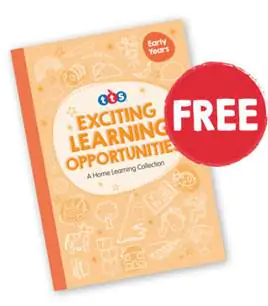
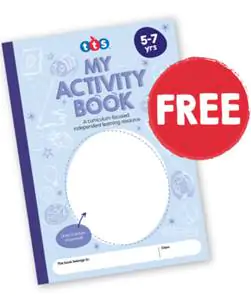
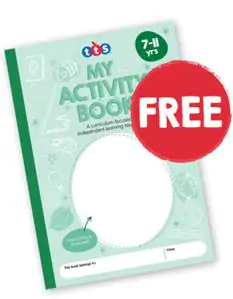
APPRENTISSAGE À LA MAISON
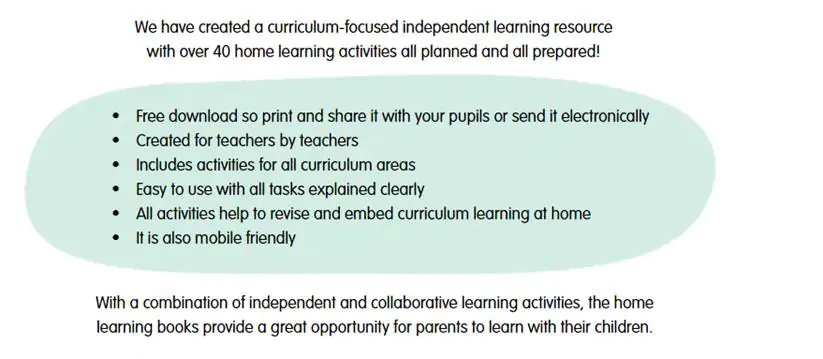
| Cahier d'activités pour la petite enfance | Cahier d'activités pour les 5-7 ans | Cahier d'activités pour les 7-11 ans |
|---|---|---|
 |
 |
 |
 |
|
|
Key Features
- Clear and bright buttons
- Makes sounds and flashes eyes to confirm instructions when sequencing
- Memory of up to 40 steps and pause commands
- Robust design
- No confusing degree turns to program
- Open-ended learning device
- Small and compact
- Why Bee-Bots in Classroom?
- Introduces kids to sequencing, estimations & control
- Helps in understanding the directional language
- To think and plan for sequence repetitions
- Understand algorithms
- Plan, Wireframe, Write & Debug programs
- Learning from Failures, of what, where & why it went wrong
- Encourages motor development skills
- Instant Audio & Visual Feedback
- In modern era of instant gratification, it’s important for kids to have a real-time audio & visual feedback through robots. Bee-bot makes it possible with child-friendly, durable and attractive design as well.
- Increased Freedom & Creativity
- Kids can program the robot to take 15cm steps and then turn left or take a 90 degree turn; it’s all up to kids to program it as they wish. Such freedom help kids to explore their creativity explore their untapped potential, increase in cognitive abilities and focus.
- Blends in Kids Curriculum
- Bee-bots can be easily blended in to current curriculum & can be used for an imaginative role-play too. Within a limited space, kids get to explore a new fun world where every kid gets together and work together to have more fun and achieve desired goals.
- Supported Surfaces - Floor & Desk
- The robot works on all the surfaces, be it floor or even desks. So that kids can either group together to play with it on a desk or use floor for a bigger play area and more fun!
- Rechargeable Robot
- It’s a rechargeable robot, so you don’t have to spend multiple times for buying costly 3AA batteries. With a one-time investment on batteries, kids can enjoy their time with robots daily! Recharging Bee-bots is pretty straight forward and takes minimal time.
- Technical Charging Details
- For the first charge or when the battery has been discharged for a long time, it may take up to 12 hours to fully charge the robot batteries. On a fully-charged battery, the robot can give approx 8 hours of normal usage & 2 hours of continuous use. It’s designed as an educational floor robot providing maximum learning benefits to small kids & a fun learning environment.
- Warranty
- With a 1-year warranty, you don't have to worry about getting it damaged. It's durable enough to last for years, but we have got you covered just in case if the product fails to deliver up to standards.
- Sturdy construction and colorful design entice children to put Bee-Bot through its paces. Directional keys are used to enter up to 40 commands which send Bee-Bot forward, back, left, and right. Pressing the green GO button starts Bee-Bot on its way. Bee-Bot blinks and beeps at the conclusion of each command to allow children to follow Bee-Bot through the program they have entered and then confirms its completion with lights and sound. Children want to use Bee-Bot over and over and are inspired to enter ever more creative and complex command sequences.
Contenu
- Rechargeable Bee-Bot Educational Robot
- USB Cable
- 3D Community Construction Kit contains 15 boxes that may be assembled into "buildings" along with pre-printed stickers to apply to create 12 different community institutions.
Technical Specifications
- Bee-Bot Dimensions
- 15.2 x 15 x 8.2 cm
- Bee-Bot Rechargeable Robot with USB cable (supplied)
- Bee-Bot Item Weight
- 318 g
- Suitable for kids ages 3+
Commentaires
Videos
- Q-1 What is the distance of one unit of Bee-Bot?
- One unit is equal to 6 inches, 15 centimeters, of 1 length of the Bee-Bot.
- Q-2 How many commands can Bee Bot hold?
- The Bee-Bot can hold up to 40 commands at one time.
- Q-3 How do I clear the Bee-Bots memory?
- Select the X key to clear what ever commands have been entered into the Bee-Bot.
- Q-4 How do I turn the sound off?
- The switch to turn the sound on and off is located on the bottom side of the Bee-Bot.
- Q-5 How Do I Charge the Bee-Bot?
- Note: The robots need to be charged before first use.
Make sure the Bee-Bot is turned off. The Bee-Bot will not charge if the power and sound are on. The power switch and the sound switch are located underneath the robot. Turn both off when charging or when storing the robot.
The Bee-Bot can be charged using a USB cable connected to USB charging plug or connected to a USB port on a laptop or desktop.
1) Insert the USB cable into the charging socket located on the underside of the 'bot.
2) Connect the other end to a spare USB port on a desktop, laptop or a USB charging plug.
3) If you have the Docking Station or Six-Bot USB charger, then place the Bee-Bots into the docking station and connect the power cable.
4) One eye will light up GREEN to show that the battery is charging.
6) The GREEN light turns OFF when it is fully charged.
- Q-6 My Bee-Bot won't charge
- 1.Make sure the Bee-Bot is turned off before charging. The Bee-Bot will not charge if the power switch and sound switch are on. The power and sound switch are located underneath the robot. Turn both off when charging or when storing.
2. Try disconnecting and then carefully re-connecting the battery. Often this can correct a usage interruption. If that does now work try switching batteries with a Bee-Bot that doesn't have a charging issue.
To disconnect and re-connect or switch a battery do the following Open the battery compartment by unscrewing the screw (which has a special design to conform to European regulations–you just need to find a tool that works, perhaps an allen wrench or the blunt tip of a pair of scissors). The screw is triangular and is on the square panel on the bottom of the Bot. Disconnect the battery and then reconnect it. If that does not work try switching the battery with one from a Bee-Bot is charging. This will determine if the problem is with the battery or the Bee-Bot.Troubleshooting Tests:
These simple and quick troubleshooting tests as listed above when done by the customer (or their eager and helpful students) usually solve Bee-Bot movement and battery issues.
- Q-7 Care and Feeding of your Bee-Bot
- 1) It is best to use the Bee-Bot on the floor. Using them on a table is not recommended as they may run off the edge and fall off which can possibly damage the bot. For example, a soldered wire could break or come loose.
2) Do not push the Bee-Bot once the go button has been selected. Pushing the Bee-Bot while it is executing a program can strip the gears, or jam the wheels. The robots are an amazingly effective tool which develops and strengthens the students' logical thinking abilities by their learning how to make the robot move on its own. They are not designed to be used as a race car or a toy.
3)Please review the How Do I charge the Bee-Bot section on this page.
- Q- 8 What is the best way to maximize the Battery Life?
- Battery life depends on how the batteries are handled. Their life can be reduced by both over-charging and under-charging. Bee-Bot batteries are lithium ion batteries and in general should be treated similar to cell phone batteries. You should put a full charge on a battery and then use the device until the battery has run out and then charge it again. That will give you the longest life (just like your cell phone). The batteries should not just be left charging for days, for example.The robots should not be left on the charger between sessions. NOTE: Charge the robot prior to the very first time using it. The robots should not be left on the charger between sessions.
- Q-9 Does My Bee-Bot Have a Warranty?
- Yes it does. Merconnet (aka Bee-Bot.us), is the official distributor of Bee-Bots and not the manufacturer.
The manufacturer warranties Bee-Bots to be free of manufacturing defects for up to a year from purchase. Manufacturing defects do not include user errors or damages, which can occur if the robots and their batteries are not properly cared for. Manufacturing defects typically show up almost immediately, not after a long period of use.
- Q-10 How can I order a new battery for my Bee-Bot?
Replacement batteries are available only for Bee-Bots sold by Merconnet. Before purchasing a replacement battery, make sure to test the battery by the directions above, under “My Bee-Bot won't charge”.
- Q-11 Were is the power switch for the Bee-Bot?
- The power switch is located on the bottom side of the Bee-Bot.
- Q-12 What is the battery located?
- The battery is located on the bottom of the Bee-Bot.